Service types
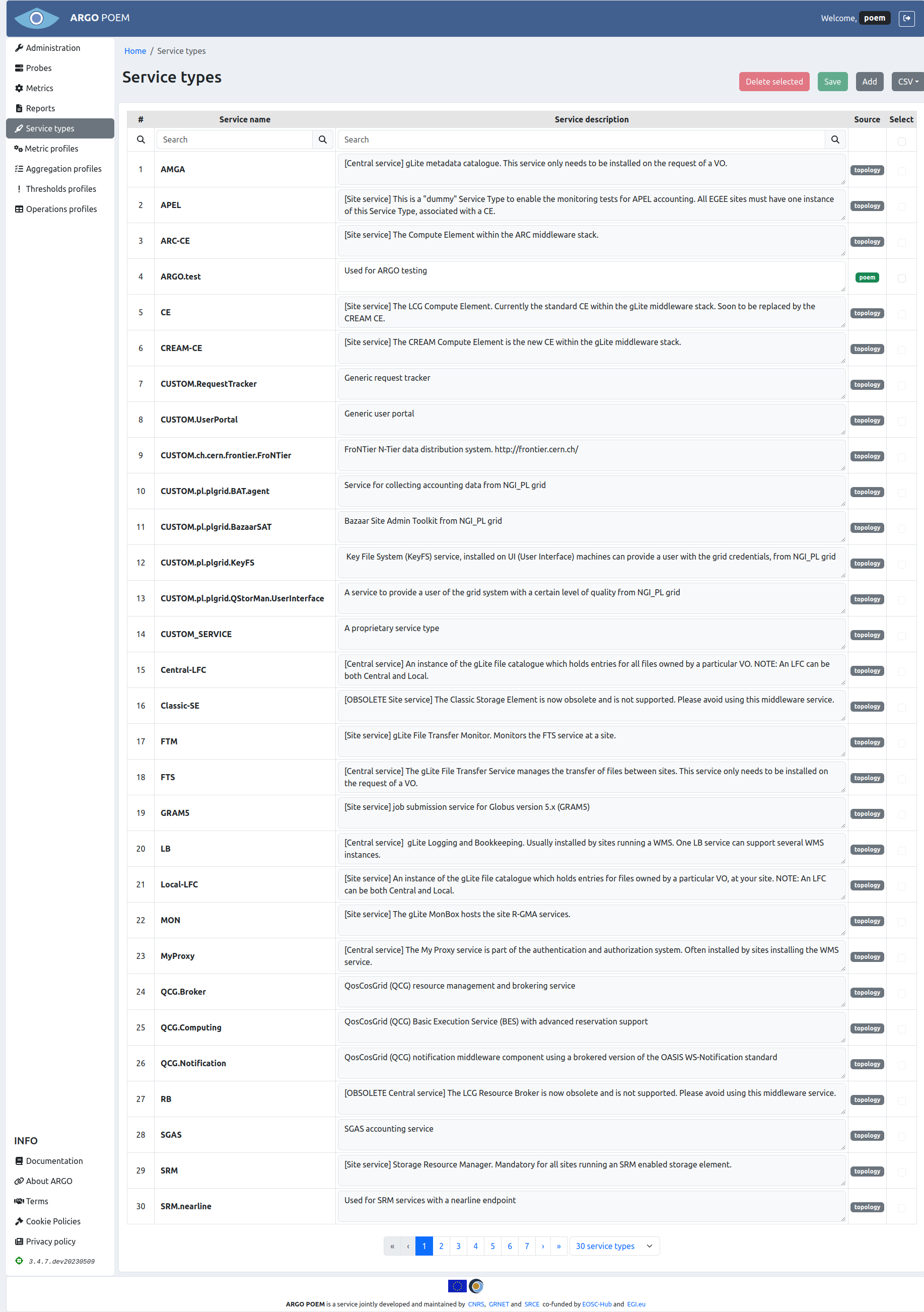
Service types page is accessible from the menu on the left side. The data is presented in a table, with information on the name of service type, service description, its source (either topology or POEM), and a checkbox column used for deletion of service types.
Service type can be defined as part of the topology (topology source tag), or it can be defined in this page (poem source tag). Note that the description for the service types defined in the topology cannot be modified, while the same field for service types defined through POEM can be modified. If modified, it is necessary to click the Save button in order to save the changes to ARGO Web-API.
The page layout is shown in the figure below. Service types can be searched by name, or by description.
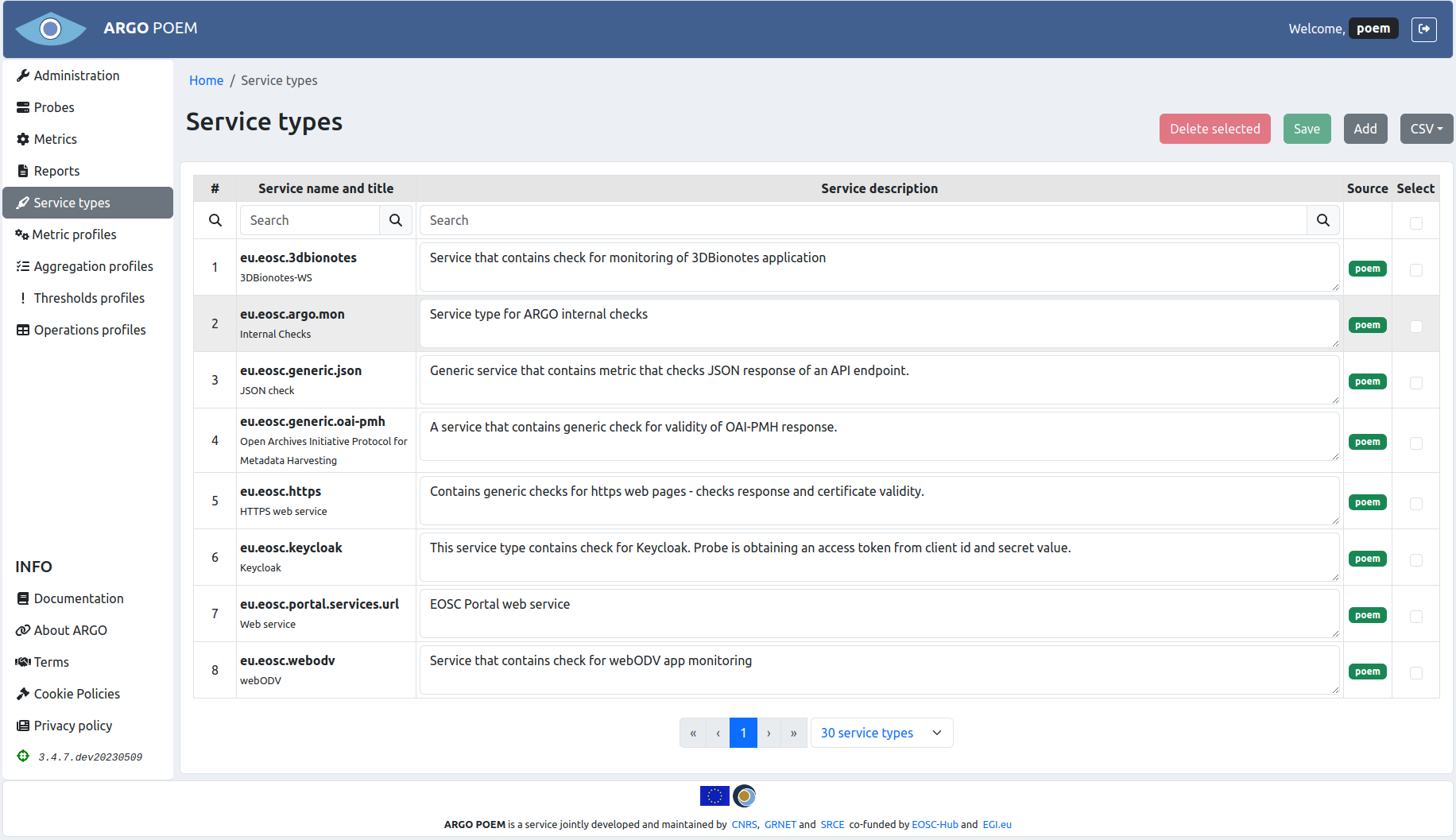
Some tenants may have also service type titles defined. In that case, they are shown under the service type name in the first column, as is shown in figure below.
Importing/exporting service types
Service types can be exported to a .csv file, and also imported from such a file. This is done by clicking on the CSV button and selecting Export for exporting of .csv file, and Import for importing data from a .csv file.
In case of export, the file name is of the form <TENANT_NAME>-service-types-devel.csv in case of devel POEM, and <TENANT_NAME>-service-types.csv in case of production POEM.
When importing service types, all the existing service types are overridden, and the new (imported) ones all have poem tag. Keep in mind that if there are service types defined in the topology, they will be recreated next time the connector syncs the data from the topology (the ones added through POEM will remain).
Adding service types
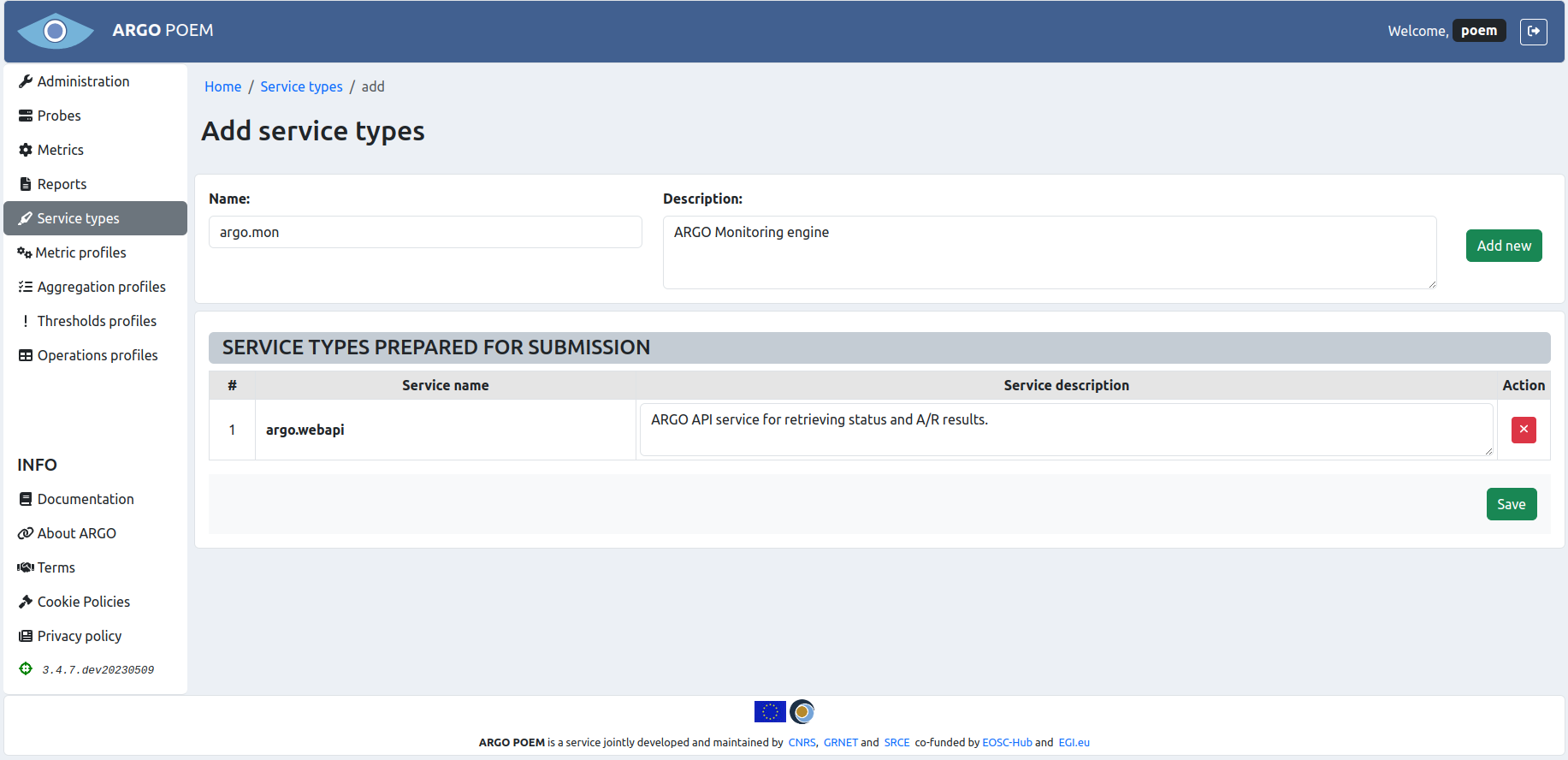
Service types can be bulk added by clicking on the Add button. It opens a new page shown in the figure below. Users add service name and description in the top fields, and by clicking the Add new button, add them to the table below. Descriptions can be conveniently edited in the table as well. The changes are sent to the ARGO Web API by clicking the button Save. Service types added this way are always stored with poem source tag.
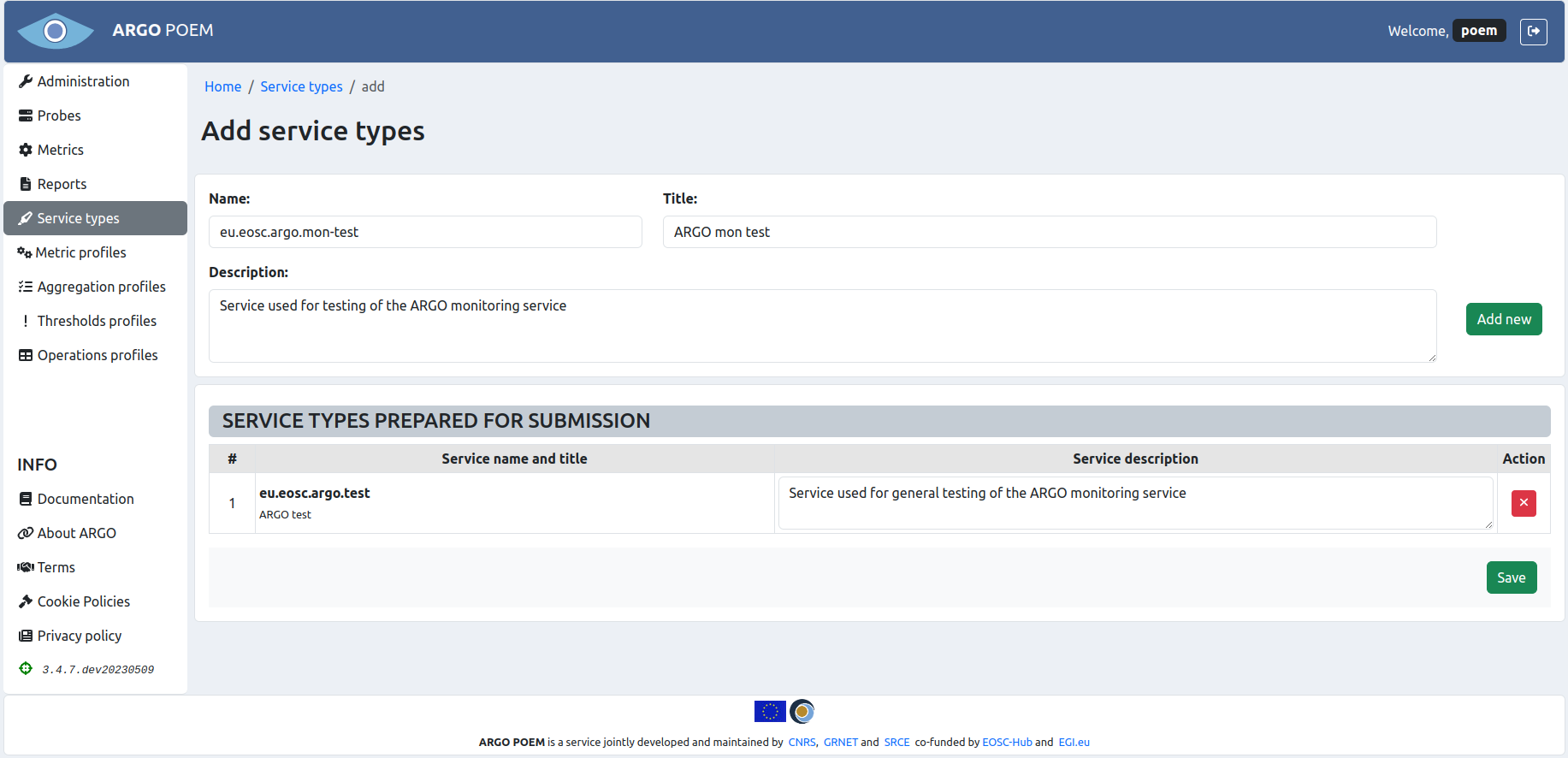
In case the tenant is using service types' titles as well, the form has one additional field for the title, as shown in figure below. The saving of service type is the same as in case without the titles.
Deleting service types
Service types may be deleted by clicking in the Select column of the row(s) of the service type(s) you wish to delete, or, alternatively, you can use the checkbox just below the Select column name, to select all of them. Finally, you delete them by clicking on the Delete selected button.